> For the complete documentation index, see [llms.txt](https://docs.0xprocessing.com/llms.txt). Markdown versions of documentation pages are available by appending `.md` to page URLs; this page is available as [Markdown](https://docs.0xprocessing.com/quick-start/invoices.md).
# Invoices
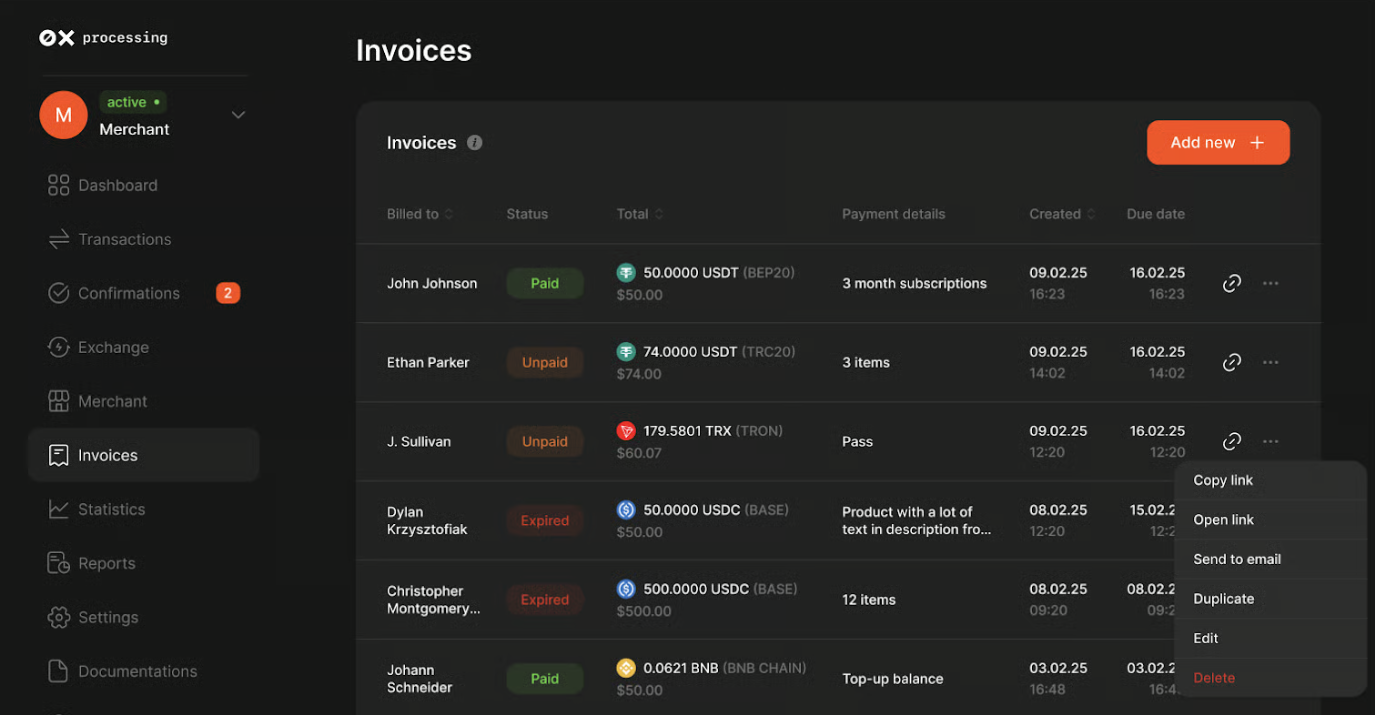
The Invoices section allows Merchants and Managers to create payment requests for customers, track their statuses, and manage existing billing documents.
### 1. Overview
Within the Invoices menu, users with appropriate permissions can:
* Generate new invoices.
* Monitor the status of past transactions.
* Edit or delete current invoices.
### 2. Creating an Invoice
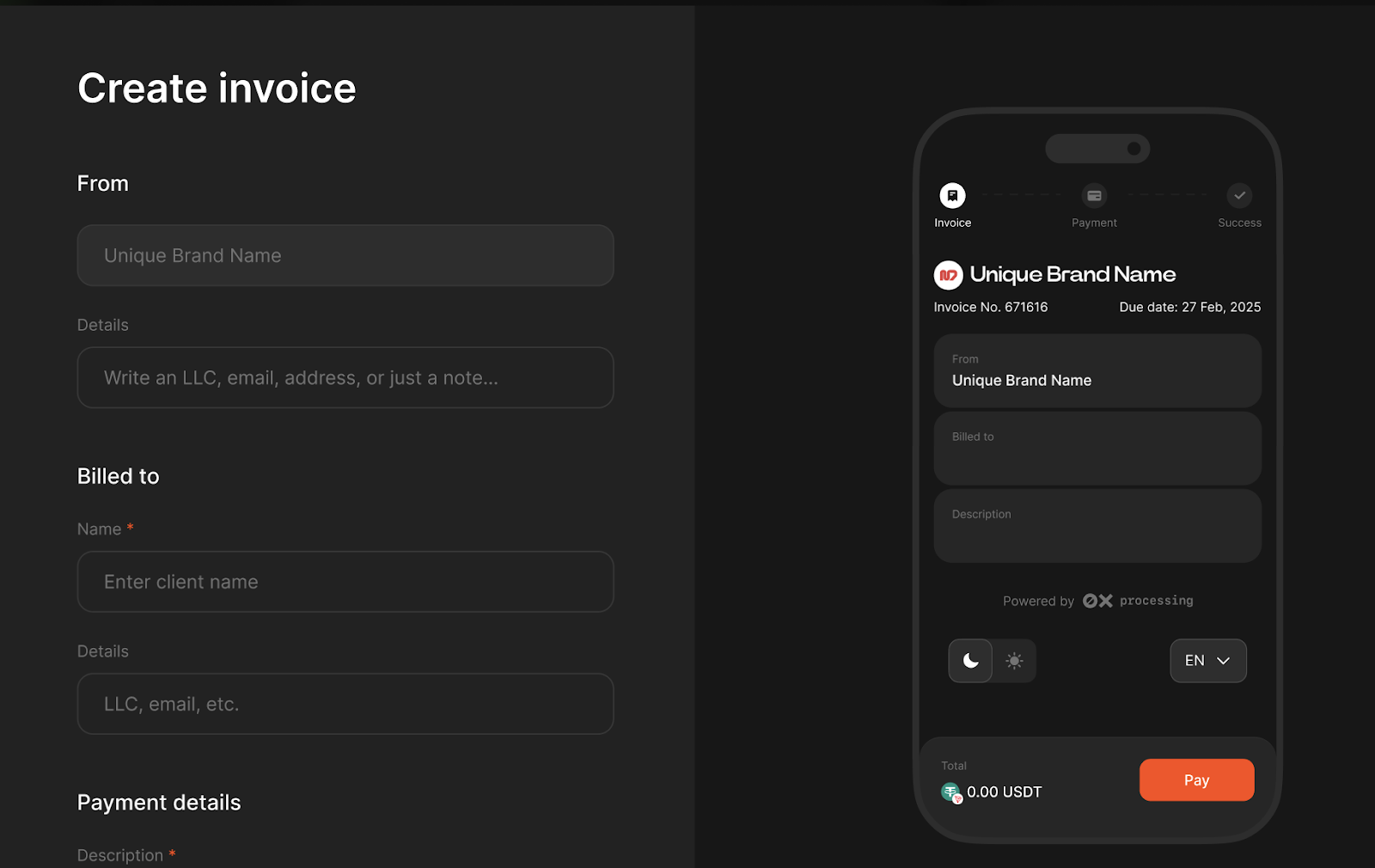
To create a new invoice, click the "Add new +" button. You will need to fill in the following parameters:
* **Recipient Name (From):** Automatically populated with the Merchant's company name.
{% hint style="info" %}
*Note:* The company name can be modified by the Merchant in the Settings menu. Manager roles do not have permission to change the Merchant's name.
{% endhint %}
* **Payer Name (Billed to):** The name of the client receiving the invoice.
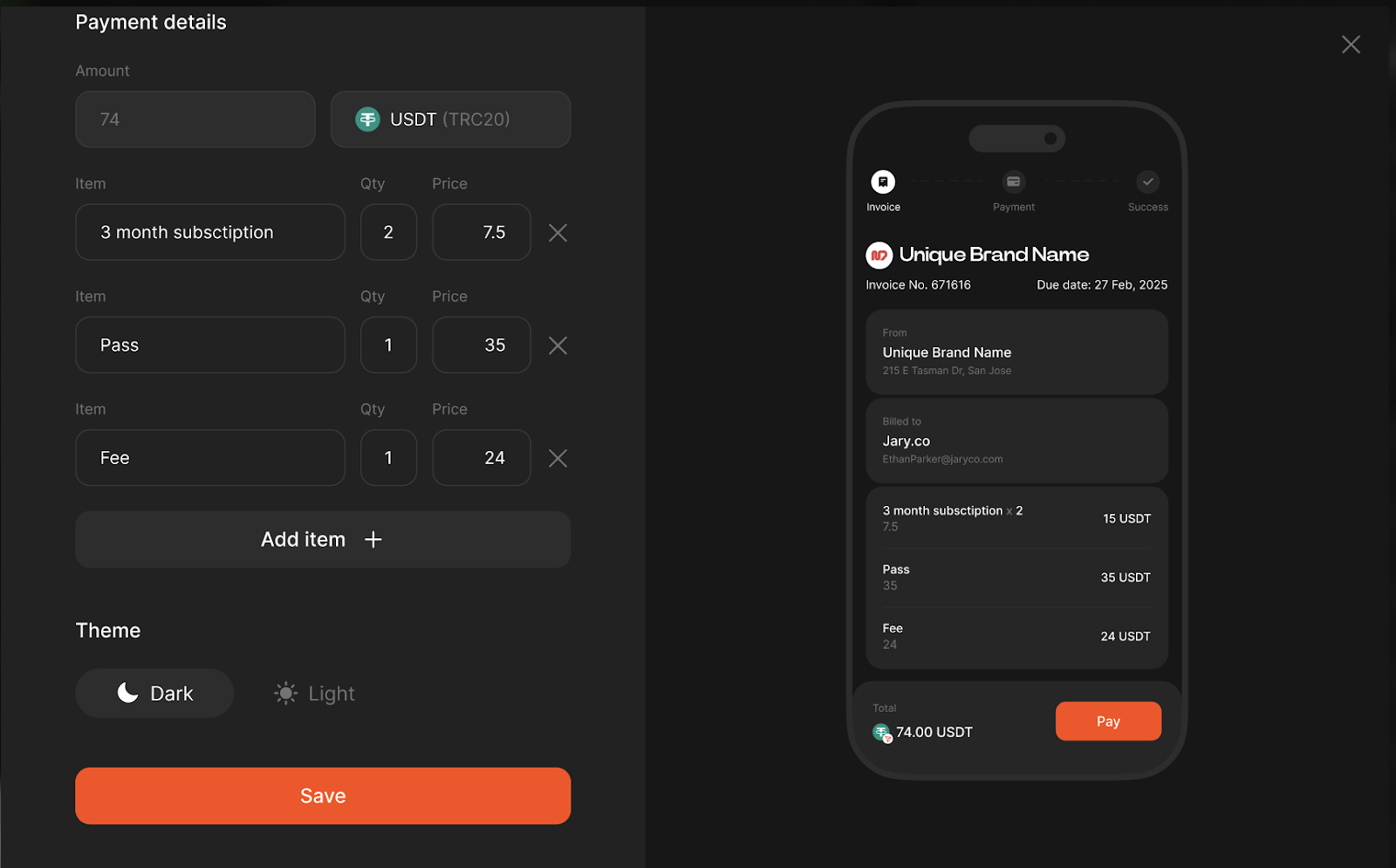
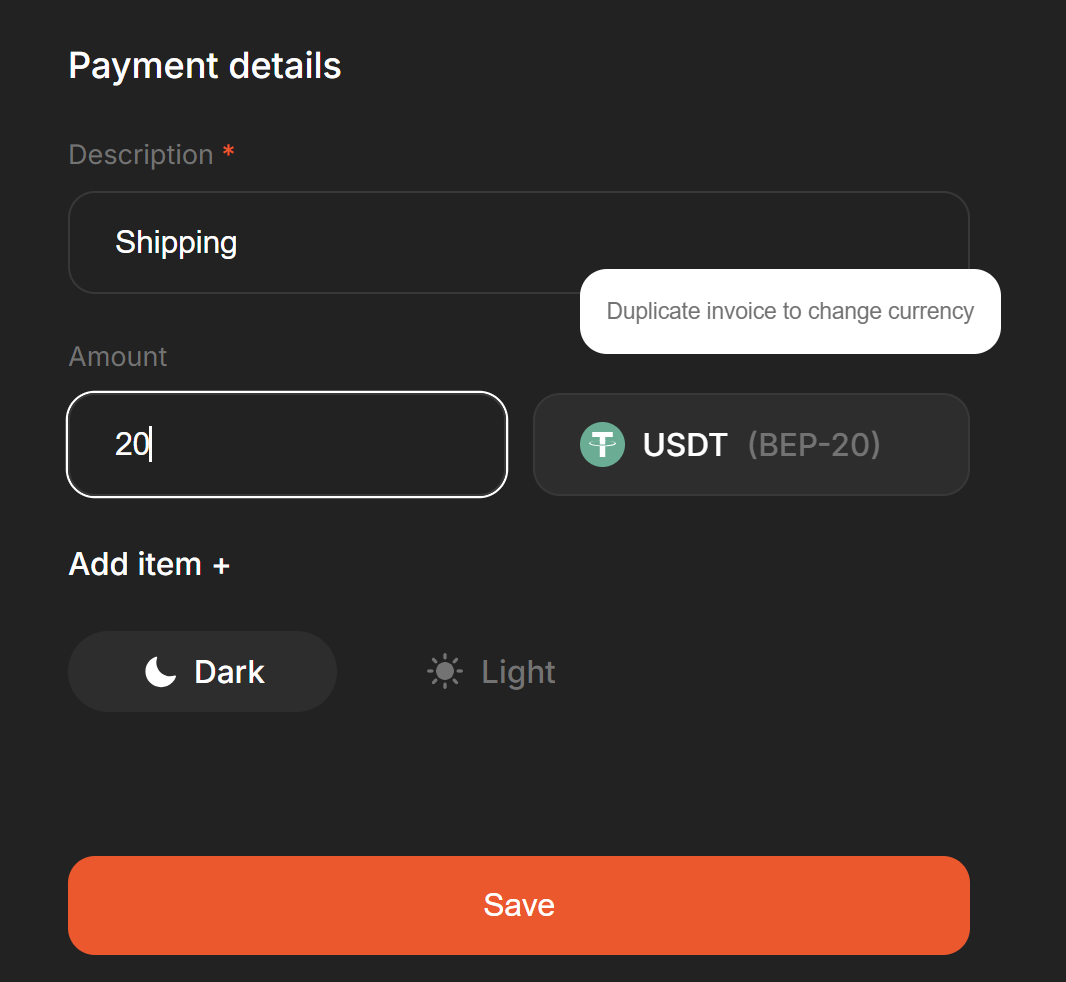
* **Payment Details:**
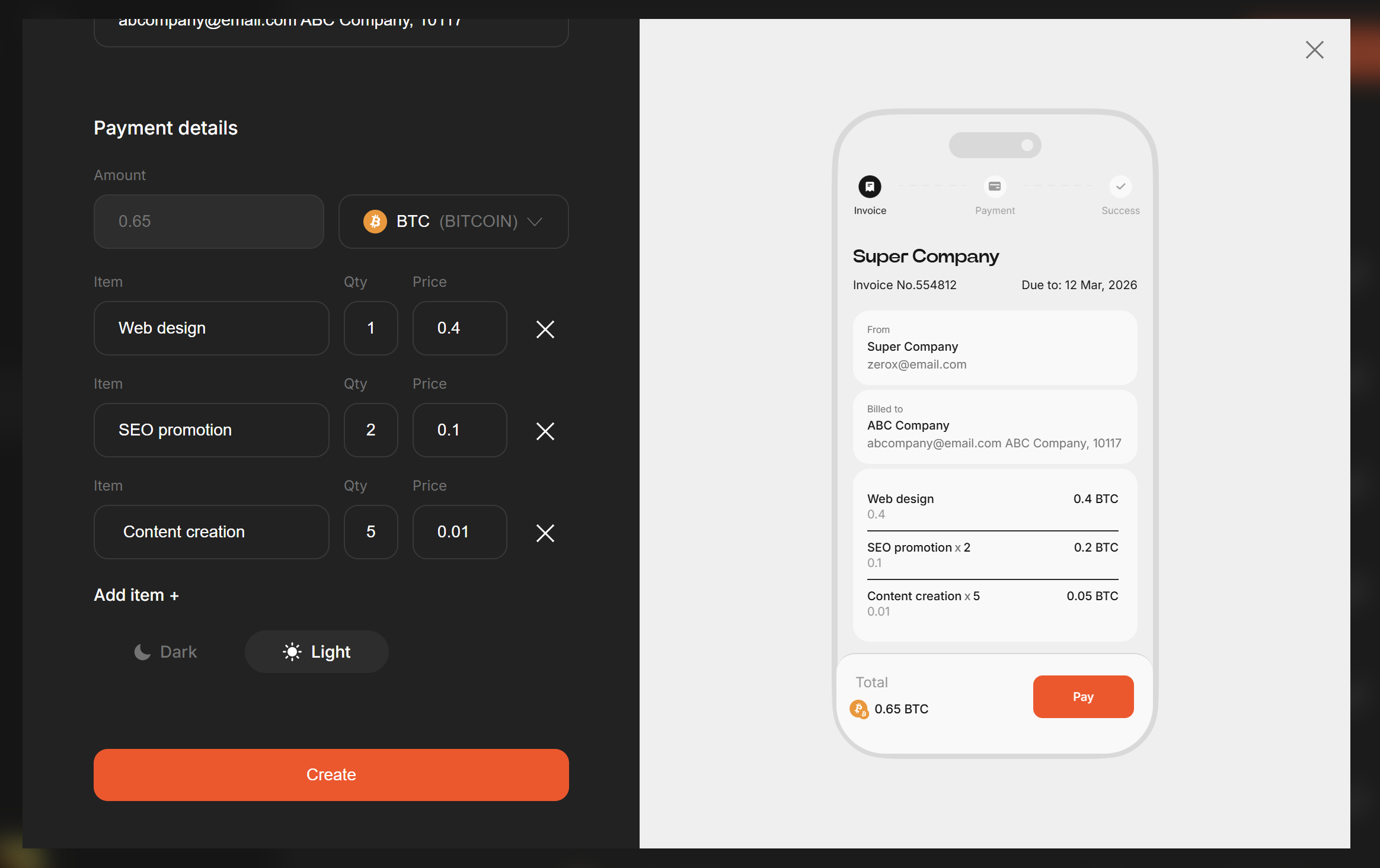
* Line Items: Name of the product or service, quantity, and unit price.
* Total Amount: Automatically calculated based on the quantity and price of each position.
* Item Limit: You can add up to 20 positions per invoice.
* **Currency:** Select the payment currency.
{% hint style="info" %}
*Note:* Not all 0xProcessing supported currencies are available for invoices by default. If you need a specific currency that is missing, please contact your manager to request activation.
{% endhint %}
* **Theme:** Choose between a Dark or Light theme for the payment form.
#### Real-time Preview
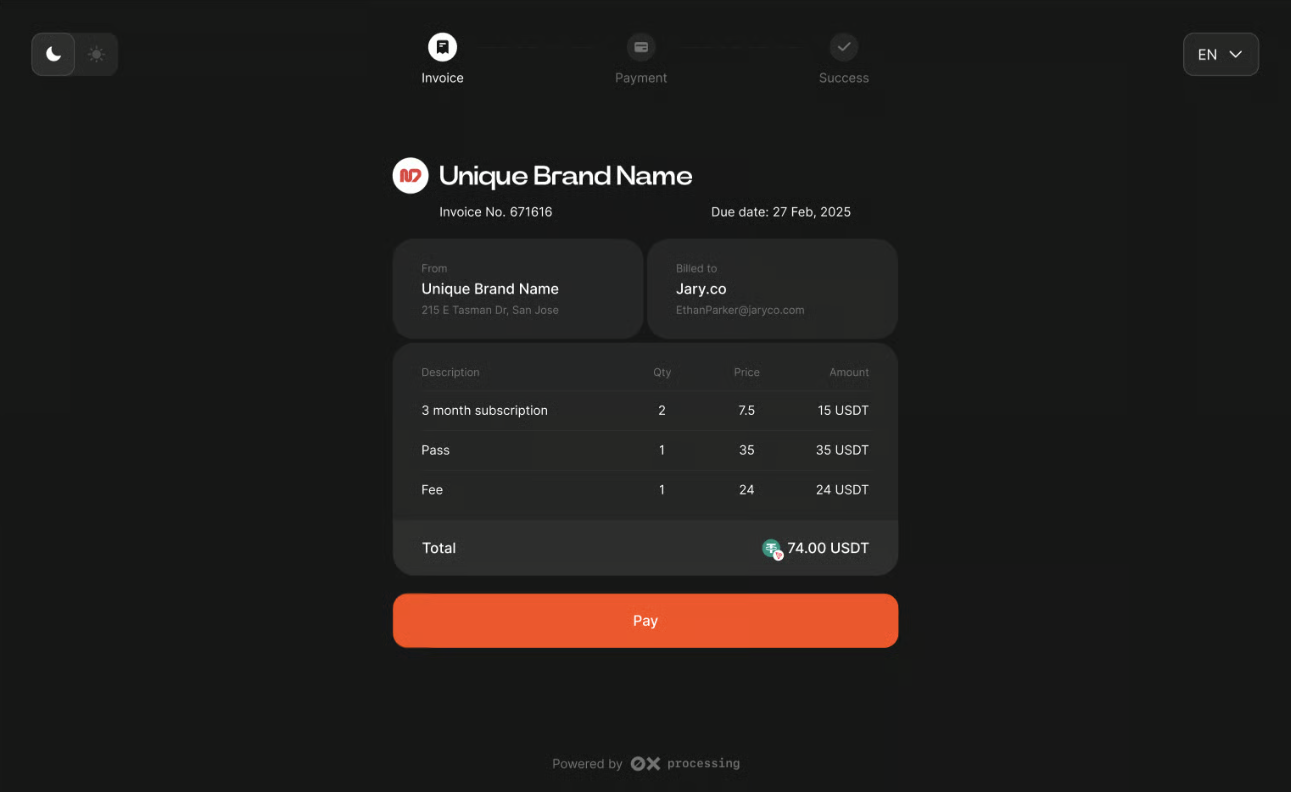
As you fill in the invoice data, a live preview of the payment form is available on the right side of the desktop screen, showing exactly how the customer will see it.
### 3. Sharing the Invoice
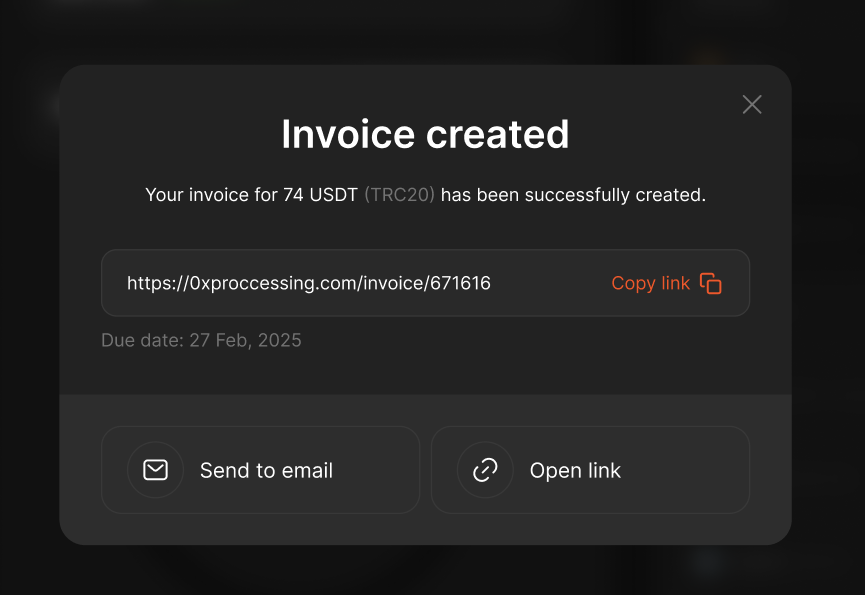
Once created, a unique payment link is generated.
* **Validity:** The link is active for 14 days.
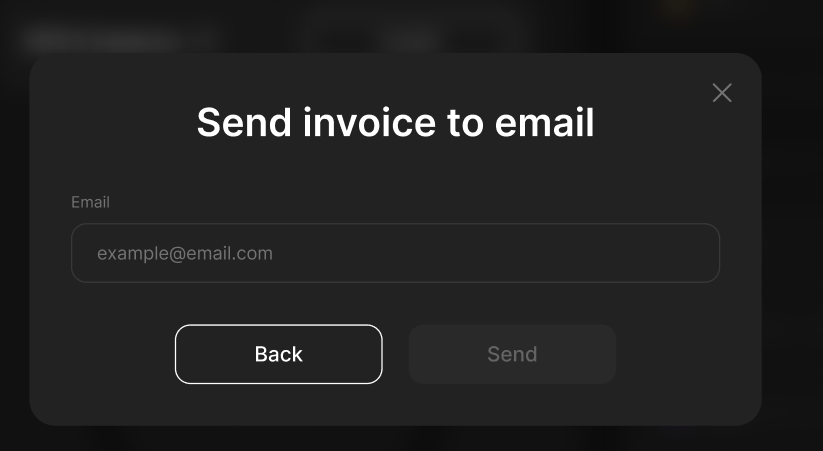
* **Sending:** You can copy the link manually or use the "Send via email" feature.
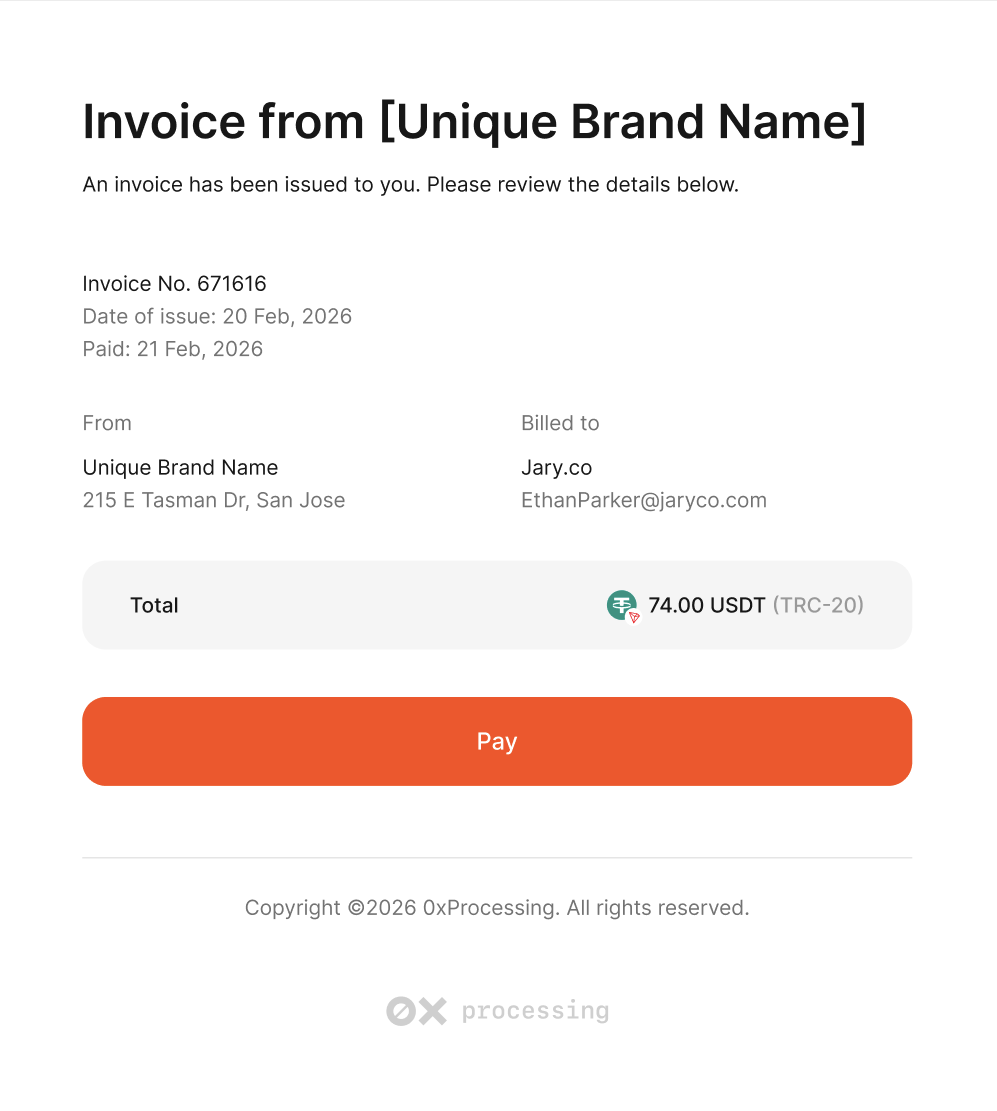
* **Notification:** The recipient will receive an email from 0xProcessing containing the invoice details and a direct button to the payment page.
### 4. Payment Process
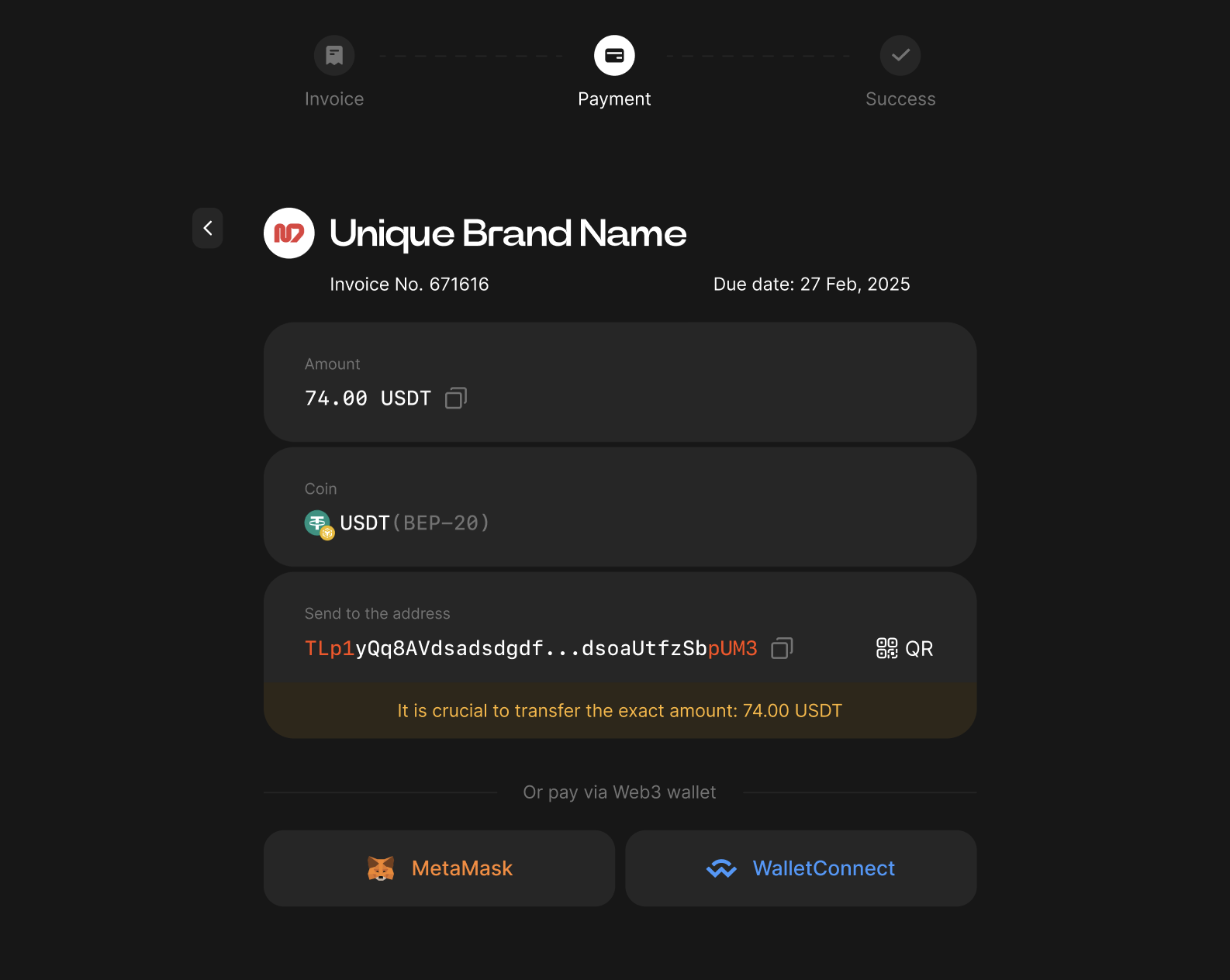
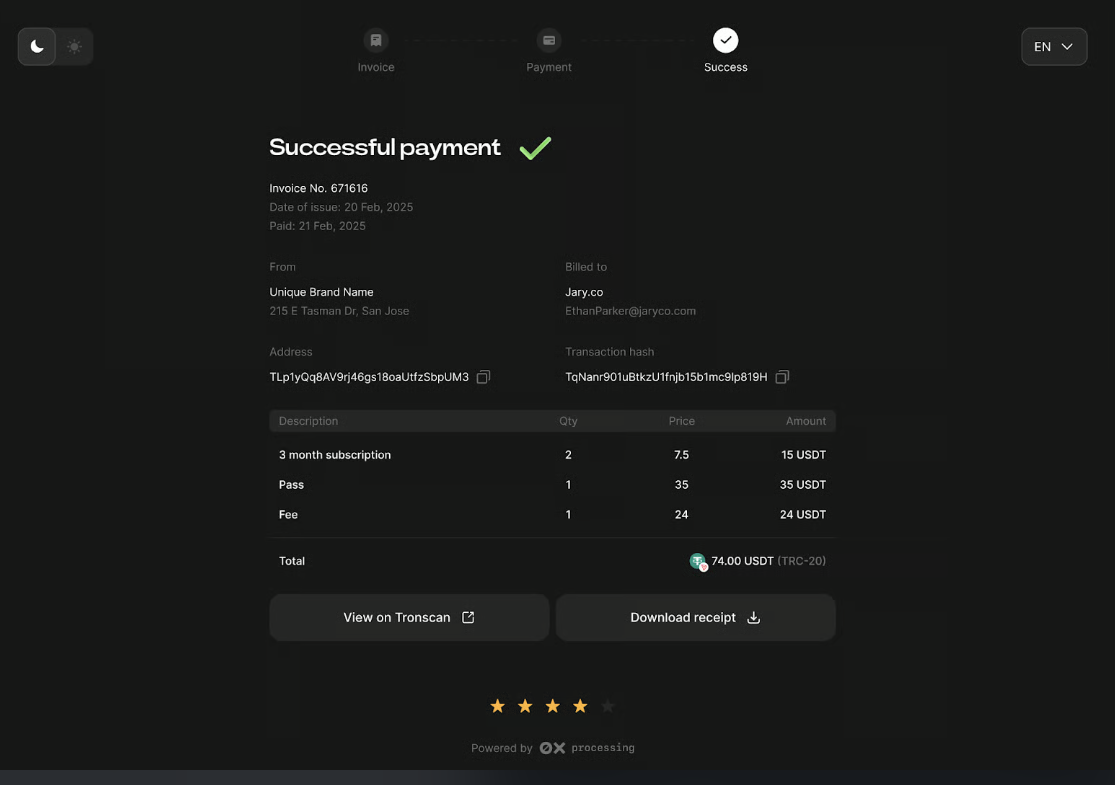
The customer payment form consists of three steps:
* **Preview:** The client reviews the items and the total amount.
* **Payment Details:** The client selects their wallet (MetaMask, WalletConnect, or manual transfer) and sees the specific destination address and amount.
* **Status/Success:** Once the transaction is confirmed, the status updates to "Successful payment." The client can then:
* View the transaction on the blockchain explorer.
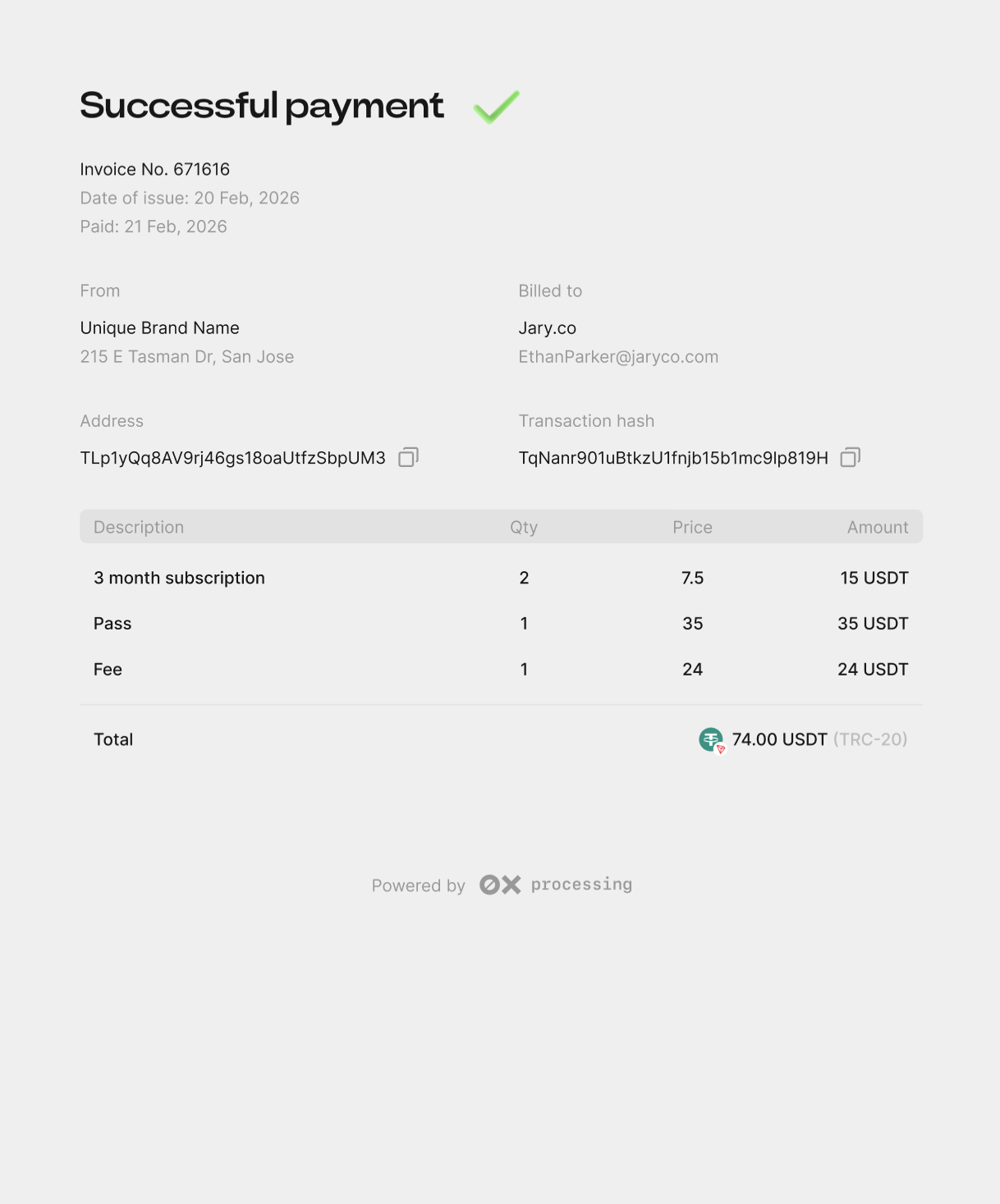
* Download a PDF receipt for their records.
Example receipt
### 5. Managing Invoices
#### Editing
You can modify an existing invoice after it has been created. The following fields are editable:
* Total payment amount.
* Names of the recipient and sender.
* Description of the payment and individual items.
{% hint style="info" icon="info" %}
**Important:** The currency cannot be changed in an existing invoice. If you need to change the currency, use the "**Duplicate**" function. This creates a new invoice with the same items, descriptions and amounts, allowing you to select a different currency.
{% endhint %}
#### Deletion
Invoices can only be deleted if they are in "Unpaid" or "Expired" status. Paid invoices cannot be removed from the system for accounting and transparency purposes.